


How it works
No hidden algorithm.
Here’s the whole thing.
We publish the matching formula, show both sides the breakdown, and remind employers to respond to waiting applicants.
Step by step
From sign-up to
“start Monday?”
Build a worker profile or set up your company, then find matches by trade, location, availability and qualifications.
Workers
Build a profile, chips not essays
Trade, level, tickets with expiry, the skills you can do on your own, where you live and where you’ll work, when you’re available. About five minutes. A strength meter shows what’s worth adding next.
See every open job with your score
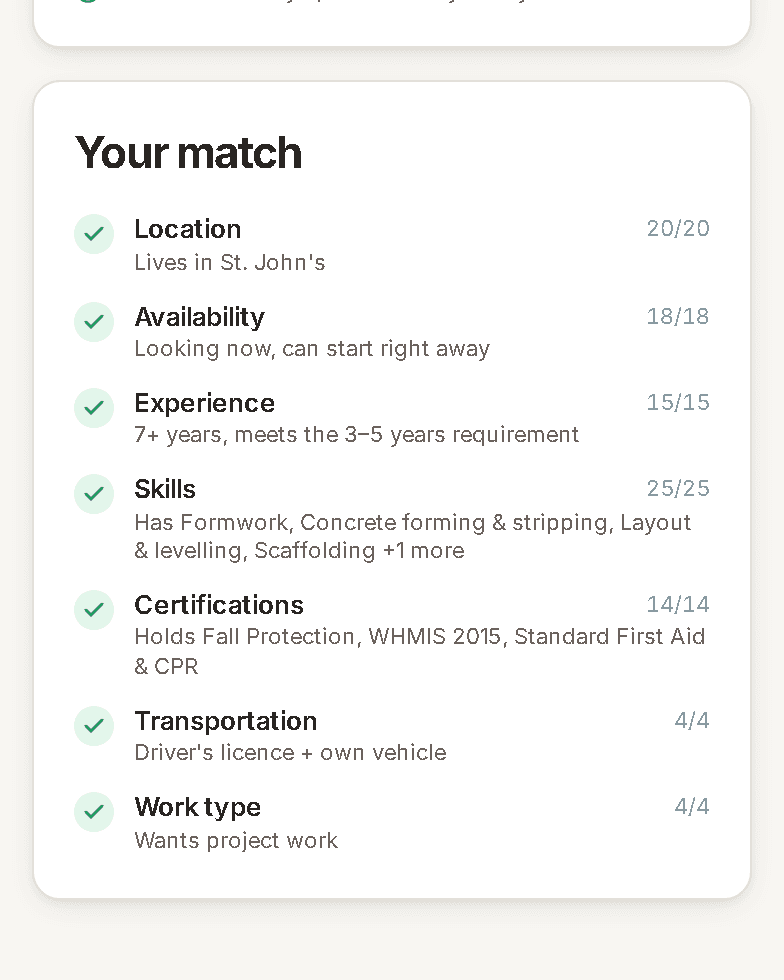
Each card shows a 0–100 score and the seven factors behind it. Tap in for the full breakdown and a “to close the gap” list linked to the part of your profile to fix.
Tap “I’m interested”
The employer gets your profile card and match breakdown. No resume, no cover letter. Answer up to two screening questions if they asked any, then track it in one place.
Track the response
Employers are expected to reply within 3 days. Follow your application status in one place; waiting applicants are flagged to employers and included in scheduled reminders.
Employers
Request verification
Submit your business number, WorkplaceNL account or website for review. A verified badge helps workers see that your company details have been checked.
Post in two minutes, or search first
Build it with chips, or on Pro describe it plainly and the AI writer drafts the posting with the right catalogue skills and tickets. Or skip posting and search the registered workforce directly.
Every candidate comes with the why
Same score, same breakdown the worker sees. Tickets show expiry dates. Availability is a date, not a badge. Crew Finder ranks “N of trade in place by date”.
Move fast in one place
Pipeline stages, in-app messaging, one-tap interview slots and offers. The best trades workers are gone in 48 hours; the tools are built for that.
The formula
Seven factors.
Weights add to 100.
This is the exact weighting used in the code. Tap a factor to see how points are awarded. AI only writes the explanation.
Required skills count 80%, preferred 20%. Full marks when you have every required skill; partial at half.
Same community = 20. Same region = 18. A region you said you'd work in = 16. Willing to travel or camp = 11.
“Looking now” = 18. Available before the start date = 18. Working but open = 11. Not looking = 0 (and the score is capped at 30).
Meet the level asked = 15. One level under = 9. Apprentice on an apprentice-friendly job = 9. Wrong trade caps the whole score at 45.
Required tickets count 85%, preferred 15%. Expired tickets don't count — and the breakdown says so.
Only scored when the job needs a licence or vehicle. Half marks if you have one of the two.
Full marks when the posting's type (full-time, project, seasonal…) is one you said you want.
- Total100
Hard cap · 45
Different trade
Wrong trade (and not an entry-level path) caps the score at 45, and says so.
Hard cap · 30
Not looking right now
Caps at 30 and hides you from matches until you flip it back.
Anonymous by default
Your name and number
stay yours.
This is why BuildNL exists. On the big boards, posting your trade means your number ends up on a recruiter’s list within the hour. Here employers see your trade, tickets and experience — and nothing that identifies you — until you personally approve them, one employer at a time. Your resume has an anonymous version too: same employers, dates, duties and tickets, no name or contact. Public reporting on the Workforce pulse is counts by trade and region, never a profile.
Employers see the work, not the person
A trade, an experience level, skills with levels, tickets with expiry dates, the region you’ll work in — and a code name like “Carpenter · 7F2A”. No name, no photo, no phone, no email.
They have to ask
An employer taps “Request contact details” and writes you a line. It lands in your notifications and on your Who can see me page. Nothing moves until you answer, and they can only ask again once a week.
You choose what they get
Four separate switches: your name and photo, your phone, your email, your full resume. Approve some, not others. Decline with one tap and nothing is shared.
You can take it back
One Revoke button per employer. They drop straight back to the code name, keep nothing, and your applications stay exactly where they were.
Applying is your call too
The “I’m interested” box has a switch: share your details with this employer, or stay anonymous and make them ask. Same on invitations.
Profile visibility
Who gets to
find you at all.
Separate from your name: this is whether an employer can see the anonymous card in the first place.
Employers can find me
Verified employers can search for you and reach out. Contact details stay private until you respond.
Only employers I apply to
You're hidden from search. Employers only see you after you express interest in their job.
Temporarily hide my profile
Nobody can see you. Your profile stays saved for when you're ready.
Notifications
Only what matters.
One digest a day.
Every type can be switched off individually: in-app, email, or both.
New match
A job in your trade, at your level, in a region you picked. Never anything else.
Application status
Every time an employer moves you in their pipeline: reviewed, shortlisted, interview, offer, declined.
Employer interest
A verified employer viewed your profile or invited you to a job.
Messages
Replies from employers, in-app and (if you want) by email.
Ticket expiring
60 and 14 days before a certification lapses, because an expired ticket costs you points.
Posting expiring
Employers: a reminder during the 5 days before a posting expires, with an option to extend it if you’re still hiring.
The 3-day reply
Silence isn’t
an answer here.
Employers are expected to respond within 3 days, even when they aren’t moving forward. BuildNL flags overdue replies and sends scheduled reminders. The timing of a response depends on the employer.
Your profile and match breakdown appear in the employer’s pipeline.
Employers are expected to review your application and update its status.
The employer dashboard flags overdue replies; scheduled reminders prompt the team to respond.
Track the employer’s response in My applications and your notifications.
Your next chapter starts here
See your
own breakdown.
Five minutes to a profile, and every open job in your trade shows you exactly where you stand.
Employers: see the employer side.